Year

2015

Nginx Reverse Proxy with Deluge Web UI

Last year I experimented with using a seedbox for torrenting; I built one using CentOS and Deluge and took a snapshot before I decided to stop using it. Recently I tried deploying it again from the snapshot and found the Deluge Web UI unreachable as Chrome displayed the error message ERR_SSL_VERSION_OR_CIPHER_MISMATCH. It appears in the time since I built it, browsers have stopped supporting SSLv3 due to the POODLE vulnerability. According to this thread, it can be fixed by updating to a newer version of Deluge; however I needed to keep using version 1.3.6 because reasons. Fortunately I was able to configure Nginx as a reverse proxy with SSL enabled for the Deluge Web UI; instead of connecting to the Deluge Web UI directly, I can connect to it through Nginx over HTTPS while the Web UI continues to listen on localhost:8112. Nginx is easy to install and there are many guides on the internet; here’s one for Ubuntu 14.04 and one for CentOS 6.

Below is my configuration for proxying Deluge Web UI through Nginx with SSL enabled; I found the SSL cipher settings on a blog post about hardening SSL ciphers here and the proxy settings on the Deluge Bug Tracker here.


Windows Deployment Services – Event ID 772 and Capture Boot Image failure

I recently tried to set up Windows Deployment Services (WDS) on Server 2012 R2 in my home lab environment; WDS has been around since Windows 2003 and sadly I’ve never tried using it until now. It allows you to deploy Windows operating systems quickly by allowing workstations to PXE boot from a WDS server; you no longer need a DVD or USB stick with Windows on it in order to image a desktop or laptop. You can simply boot a machine via PXE and select the appropriate image to install; you can also include driver packages to be installed automatically or build your own custom images by capturing a sysprepped machine.

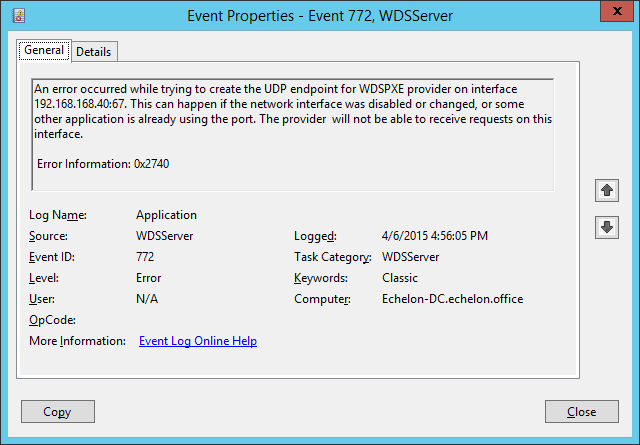
Installing Windows Deployment Services is straight forward; if you’ve added a Server Role before like DNS or DHCP then you’ll be familiar with the process. You can read more about it here. I already had a 2012 R2 VM running as a Domain Controller; I added the WDS role first and then the DHCP role as I needed to provide DHCP Options 60, 66 and 67. I initially only added options 66 and 67 for the server IP and boot path; I didn’t immediately notice a way to specify Option 60 and tried PXE booting my notebook anyway. The PXE boot process failed (connection timeout) and I noticed the Event Log on the WDS Server had one error concerning Event ID 772:

wds_event_log

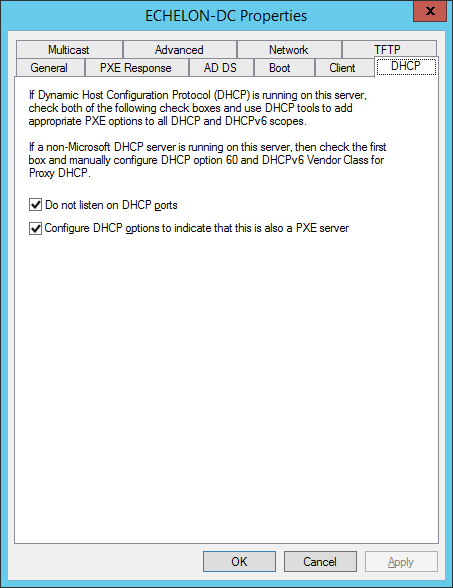
After looking up Event ID 772, I found the issue was due to having WDS and DHCP running on the same machine; it seems they both listen on some of the same ports which why the error log mentions “some other application is already using the port.” I fixed this by enabling the following options in the WDS Server properties:

wds_dhcp

These options can also be enabled by command line:

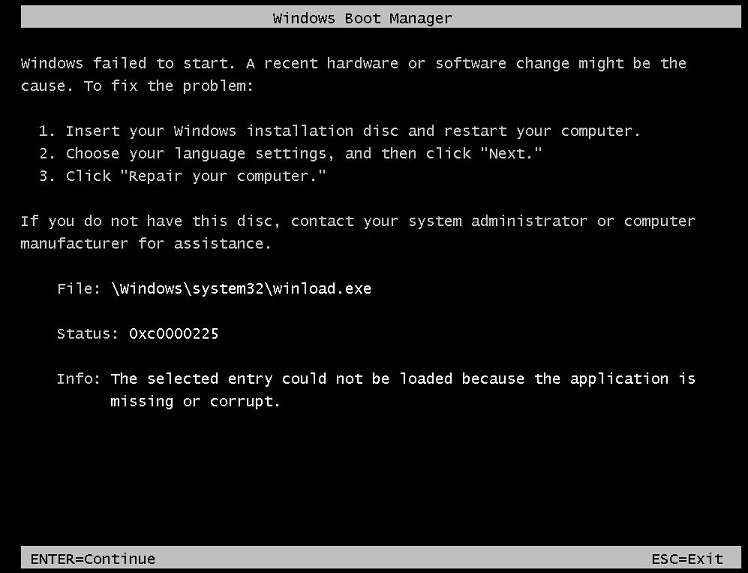
After enabling those options I was able to successfully boot from an install image I had added. Next I tried creating a custom install image based the Windows install that was already on my notebook. I created a capture image by following the TechNet instructions but it gave an error when I tried to boot from it; the error was a “Windows failed to start” message similar to this one:

winloaderror

I don’t know how but someone in this thread figured out that mounting and unmounting the capture image resolves the issue. I issued the following commands to fix my capture image:

Now I could boot my capture image and after fixing my issue with sysprep, I was able to capture and upload the Windows install on the notebook (complete with applications and drivers) to the WDS Server. I installed the image I captured but ran into an error message as Windows was booting: “Windows could not finish configuring the system”.

Sysprep – Windows Could Not Finish Configuring the System Error

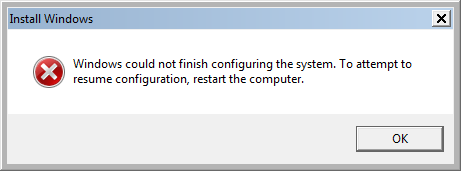
After installing a custom image on a notebook via Windows Deployment Services, I received the following error message as soon as the machine started:

sysprep_finish_error

I found this thread and decided the first solution was a bit more complicated than what I wanted to do at the time; I was about give up and chalk up the error message to a compatibility issue with some software I had installed but I decided it would be best to figure it out and know for sure. Then I found this blog post which coincidentally references the same TechNet thread I was looking at earlier. The author of the blog writes that the correct solution was booting into Safe Mode first, waiting for the error and then rebooting again solved the issue; I tried this on my notebook and it worked. It wasn’t until I started writing this post that I noticed the person who posted the first solution in the TechNet thread was using ESET Antivirus; I also have ESET on my notebook which is probably what caused the issue in the first place.

Sysprep – LaunchDll: Failure Occurred While Executing ‘drmv2clt.dll,Sysprep’

I was trying run Sysprep on a spare notebook in order to test image capture via Windows Deployment Services when I received a rather unhelpful error message: “A fatal error has occurred while trying to sysprep the machine.” After looking into the error log I found something more useful and ran a search for drmv2clt.dll sysprep and found the following thread:
https://social.technet.microsoft.com/Forums/windows/en-US/c469805c-98af-4bb2-9655-c86c294470a9/sysprep-failure-occurred-while-executing-drmv2cltdll-fix?forum=w7itproinstall

The OP of the thread figured out that the issue was due to the “Windows Media Player Network Sharing Service” – as soon as I disabled the service I was able to run sysprep successfully. It is interesting how this thread dates back to 2009 and how another poster writes that this issue was fixed in Windows 7 RTM; I was running sysprep on a notebook running Windows 7 SP1 with all current updates.

Mailgun – Transactional Email/SMTP Relay

Recently I’ve stumbled onto Mailgun, a transactional email service targeted at developers; they provide an API to easily craft and send email messages through their service. You can verify your domain with them using a few TXT records and once configured, you can send emails using your own domain. Currently, Mailgun allows up to 10,000 emails per month for free; adding your credit card info to your account unlocks 30 days of log retention (instead of 2 days) and allows you to add up to 1000 domains. They also provide an SMTP relay that uses ports 25, 2525, 467 and 587 and it supports SSL/TLS or no encryption. There have been many times where I tried to configure Scan to Email on an older multi-function printer; most of the time it didn’t support SSL/TLS for email and there was no on-premise Exchange or other email server to relay with. Having something like Mailgun back then would’ve been nice. Now that I’ve found Mailgun, I was able to delete a spare Google Apps account that I was only using to send email notifications for my computer backups and Synology NAS.

How to Internet Speed Test Your VPS

If you’re using a hosted Linux server for web hosting or cloud services, you might be curious what kind of download/upload speeds your server has. Since many hosted servers are running headless you can’t simply go to www.speedtest.net and get your speed results that way. Fortunately, someone created a Python script called speedtest-cli that can be used from the Linux command line to run a simple test.

Simply download speedtest-cli to directory of your choice and run it:

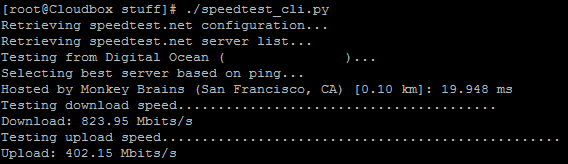
Without any parameters, the script will automatically find the best server and run a test:

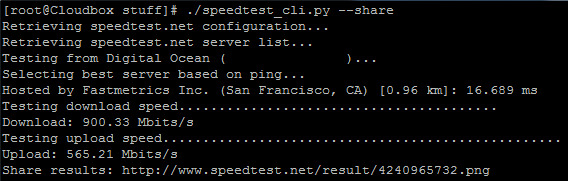
You can also specify the –share parameter to generate a URL for sharing the results image:

speedtest-cli-share

You can see the rest of the parameters by running speedtest-cli -h:

Mumble – Low Latency, High Quality Voice Chat

My friends and I originally used Ventrilo for our voice communications during long sessions of WoW raiding and other games; along the way we eventually started using Skype as it didn’t require a server and we didn’t have to push a button to talk. Somehow I stumbled upon this video demonstrating the latency differences between Mumble and Ventrilo and immediately decided that we should be using Mumble for voice chat.

There seems to be plenty of sites you can order Mumble servers from but I decided it would be a good learning experience to build my own from the ground up. I spun up a new CentOS droplet at DigitalOcean and followed the instructions at a blog I found. If you use this guide, you’ll find your mumble.ini configuration file under /opt/mumble-server – the Mumble Wiki has the details on each parameter but Mumble will just work out of the box without doing anything further. Additionally, if you want to use a real SSL cert with Mumble like I did, you can use this guide from the Mumble Wiki.

Pingdom – Free Site Monitoring and Speed Test

I’ve been using Pingdom to monitor the uptime and performance of this blog; I originally found it on someone else’s blog while doing research on Apache/Wordpress. With a free account you can get a monthly report of your site’s uptime, number of outages and average response time. You can also configure a custom page like this one to display an overview of your site’s performance stats. Finally,  you  can use their speed test to benchmark your site’s load time and it offers recommendations on how to improve it; you can also choose from different locations around the world to test your site from.