Year

2014

Fsck on Synology DS1511+ (DSM 5.1)

I’ve recently upgraded my Synology DS1511+ to DSM 5.1 and found an simpler way to run fsck than my previous post.

Issue the df command via terminal and note what is displayed under the “Filesystem” column for /volume1 (this is where your data is stored):

Next run:

Once the check is completed, reboot your Synology from the terminal with reboot.
Erratic Bluetooth/Apple Trackpad on Yosemite Hackintosh

Since upgrading my Hackintosh to Yosemite, I’ve noticed a few instances where my Apple Trackpad becomes unusable; it will show as connected but the cursor will not move or move erratically and multi-touch gestures will not work. I am using the IOGEAR 4.0 Bluetooth dongle as recommend by tonymacx86. This usually only happens when I do a Time Machine restore (after failed attempts to optimize kexts or settings) but it happened today while tinkering with CPU power management.

I haven’t been able to find any useful information related to this but through trial and error I’ve found an odd solution.

  1. Remove all paired devices under System Preferences > Bluetooth
  2. Shutdown the Hackintosh
  3. Remove the USB dongle
  4. Power on the Hackintosh and shut it down again after it finishes loading
  5. Reconnect the USB dongle and power on the Hackintosh
  6. Repair your devices

Intel SpeedStep on Yosemite Hackintosh

While using my Hackintosh today, I noticed that I only ever have the minimum frequency (800mhz, 8x100bclk) and the maximum non-turbo frequency (2.8Ghz, 28x100bclk) for my Intel i5-4440S. I was using iStat Menus to check this info and based on this, I spent a great deal of time trying to figure out how to make it work properly. I only learned much later that most utilities only report the min and max frequency and nothing in between.

Initially I tried changing the smbios to iMac 14,1 since that is closer to my system than the MacMini 6,2 definition; the iMac is Haswell and the MacMini is Ivy Bridge. Eventually I stumbled onto http://www.tonymacx86.com/mavericks-desktop-support/128926-mavericks-native-cpu-igpu-power-management.html – a complete guide to enable proper CPU power management and well as the correct utilities to check with.

I downloaded the ssdtPRGen.sh script to generate an SSDT file to enable the proper CPU power management:

This generated the following output:

You can see in the output above that it correctly detected and generated the missing P states in-between the min and max frequencies as well as the turbo frequencies.

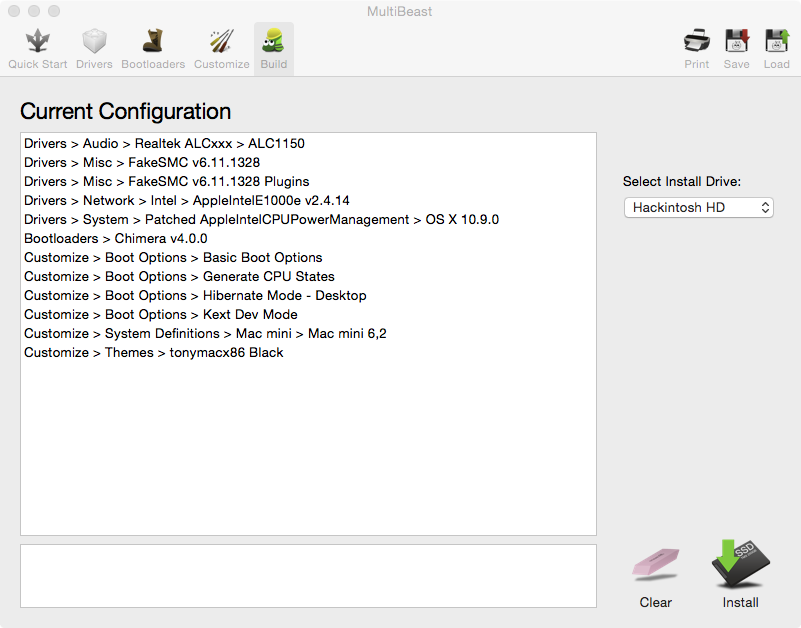
Since I originally used the Multibeast option “Patched AppleIntelCPUPowerManagement”, I restored the original AppleIntelCPUPowerManagement.kext from my Unibeast installer.  Then I used Chameleon Wizard to disable the “Generate P-States” and “Generate C-States” options and enable “Drop SSDT” so the ssdt.aml generated earlier is loaded by the bootloader (ssdt.aml needs to be copied to your /Extra folder, which ssdtPRGen.sh will do for you).

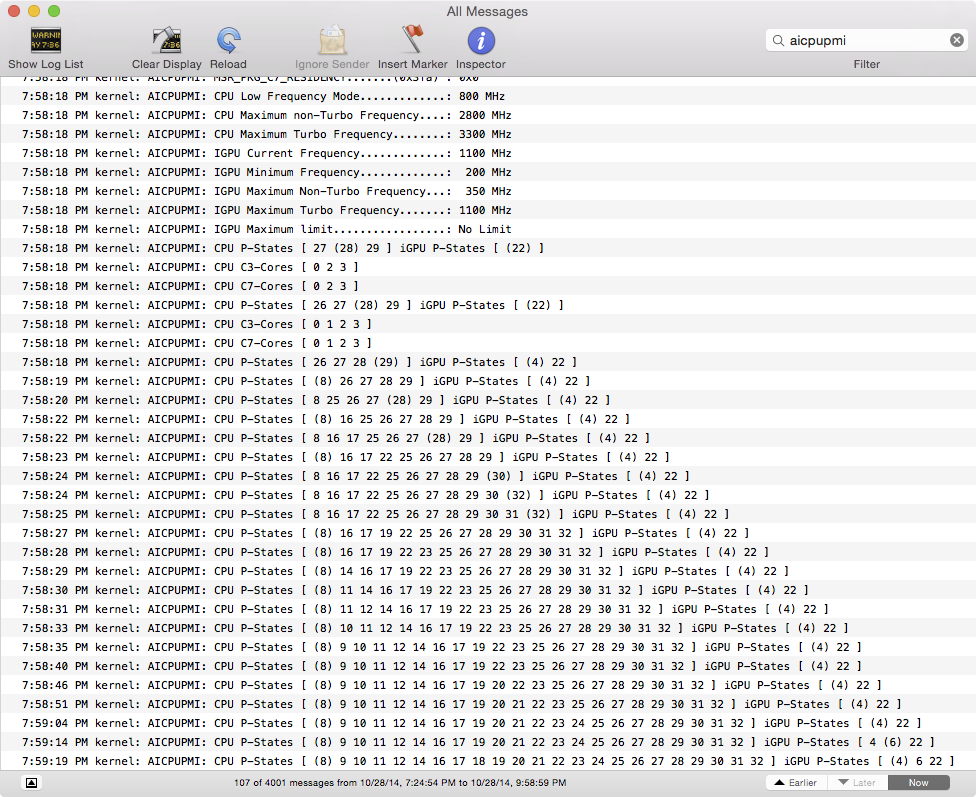
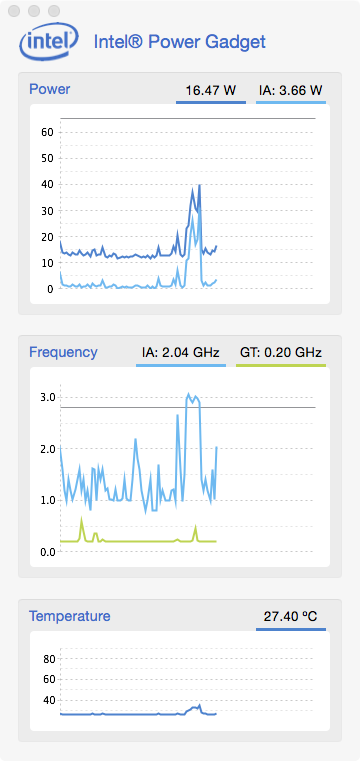
The Intel Power Gadget and AppleIntelCPUManagementInfo.kext can be used to verify whether or not power management has been correctly enabled. Below you can see the outputs from my system:

How to Center NextGEN Gallery Thumbnails

Thanks to this blog post I finally found the solution for centering the thumbnails in NextGEN Gallery.

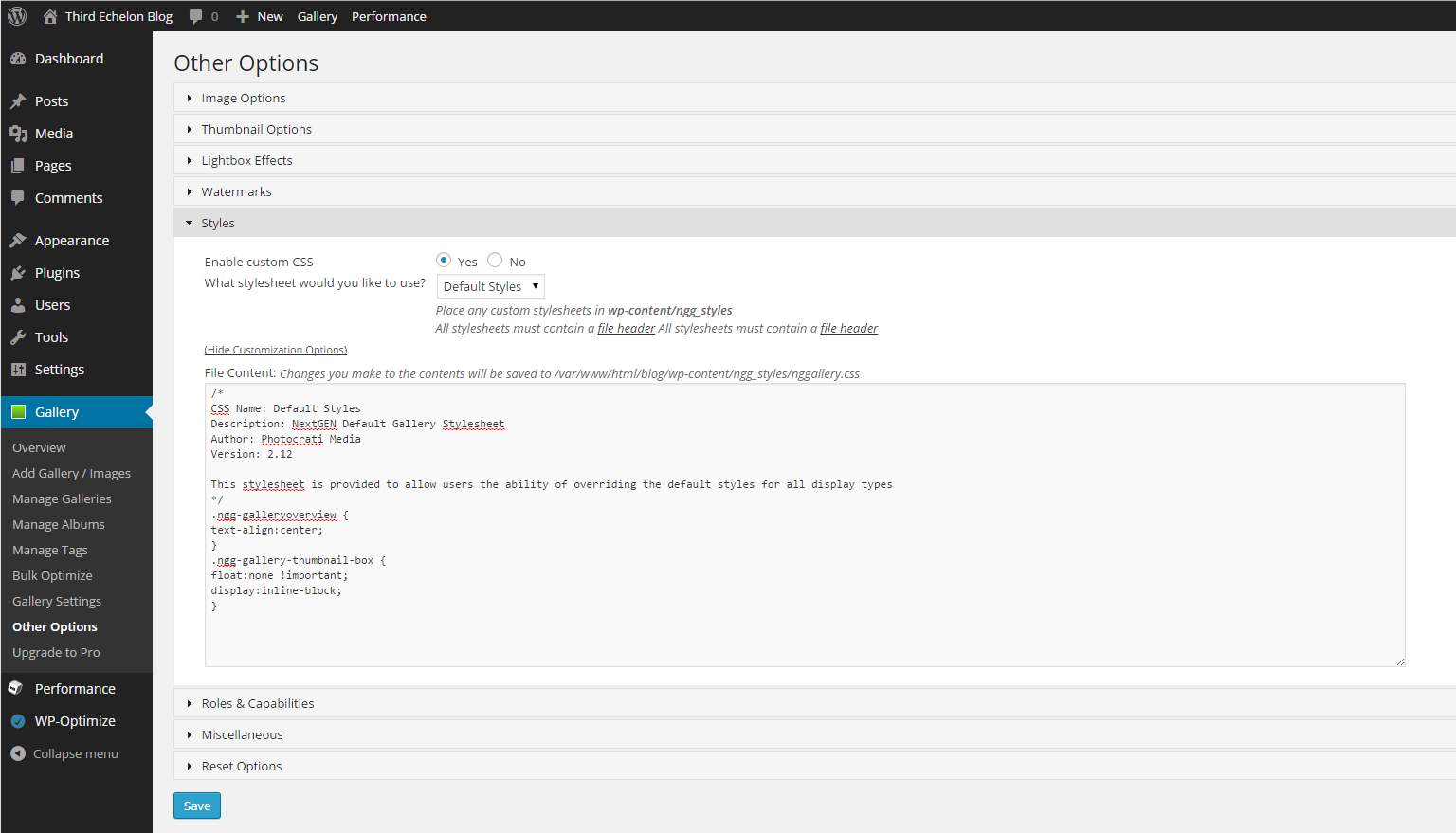
In your NextGEN Gallery Settings go to “Other Settings” > “Styles” > “Enable Custom CSS” and paste the following code:

Now your NextGen Gallery thumbnail will be centered instead of left aligned, as in this post.

Hackintosh – ASRock Z87E-ITX and OS X 10.10 (Yosemite)

I’ve successfully upgraded my Hackintosh to OS X 10.10 and everything works the same as before. The process was basically the same as my original Mavericks install. All you need is to create the Unibeast USB installer by following http://www.tonymacx86.com/445-unibeast-install-os-x-yosemite-any-supported-intel-based-pc.html. It is important to note that the new Yosemite based installer seems to have removed the option “Restore System from Backup”; so you will to keep your older Mavericks based Unibeast USB for doing full Time Machine restores.

Initially I had trouble with FakeSMC and audio not working; turns out this was because I forgot to check the new option in Multibeast for “Kext Dev Mode”. After reinstalling with that option enabled, sensor monitoring and audio was working.

HPN-SSH on CentOS

Somewhere along learning how to build my own blog and LAMP stack, I stumbled across HPN-SSH – a project to improve network performance in SCP file transfers.You can read more about it here.

This is how you can install it:

Install required software for compiling and patching OpenSSH/HPN-SSH:

Download latest versions of OpenSSH portable and HPN-SSH patch into /usr/src:

Extract OpenSSH:

Change directory in extracted folder and apply patch:

Configure OpenSSH:

Remove old config files to prevent any conflicts:

Compile and install:

Now we have the newest version of OpenSSH installed and patched with the improvements from HPN-SSH; however we still need to make some changes to the /etc/ssh/sshd_config to take advantage of them. Near the bottom of your config file you will see a section for HPN related options; I used the following options from other guides I found:

Another important thing to note is that the new sshd config file will reset some of your options like PermitRootLogin so be sure to check those. On my system the SyslogFacility option was commented out so the ssh related messages were logged to /var/log/messages instead of /var/log/secure; this subsequently broke my fail2ban setup since fail2ban was looking for failed authentications in /var/log/secure. To fix this I had to change the SyslogFacility option to:

Don’t forget to restart sshd when you’re finished:

Remove /home Partition on CentOS

During my experiments with building a seedbox, I noticed that CentOS created a separate partition for the /home directory. Since I was building a seedbox at a cloud provider, I wanted the entire disk as a single partition for large torrent downloads.

Below is an example layout on a default install of CentOS 6.5:

The following commands will remove the /home partition and resize the root one:

Running df-h again will show that we have a single partition for /:

Now we still need to edit /ect/fstab to prevent CentOS from trying to mount a non-existent partition on start up. Delete the line that corresponds to the old /home partition; in my example its line 10:

Deluge 1.3.6 Seedbox on CentOS 6.5

I’ve recently been experimenting with using a seedbox; I built one using CentOS 6.5 and Deluge. The original guide I followed used a repo that only had Deluge 1.3.5 and later through some googling I found a repo for installing 1.3.6.

First add the repo for Deluge 1.3.6:

Add the following lines:

I also needed the repo for the geoip package which is required for deluge; my CentOS install at home needed it but a CentOS cloud server I tried didn’t:

Now we can install geoip and deluge:

Create a user to run deluge:

Set deluge daemon and webui to start automatically:

Add the following lines:

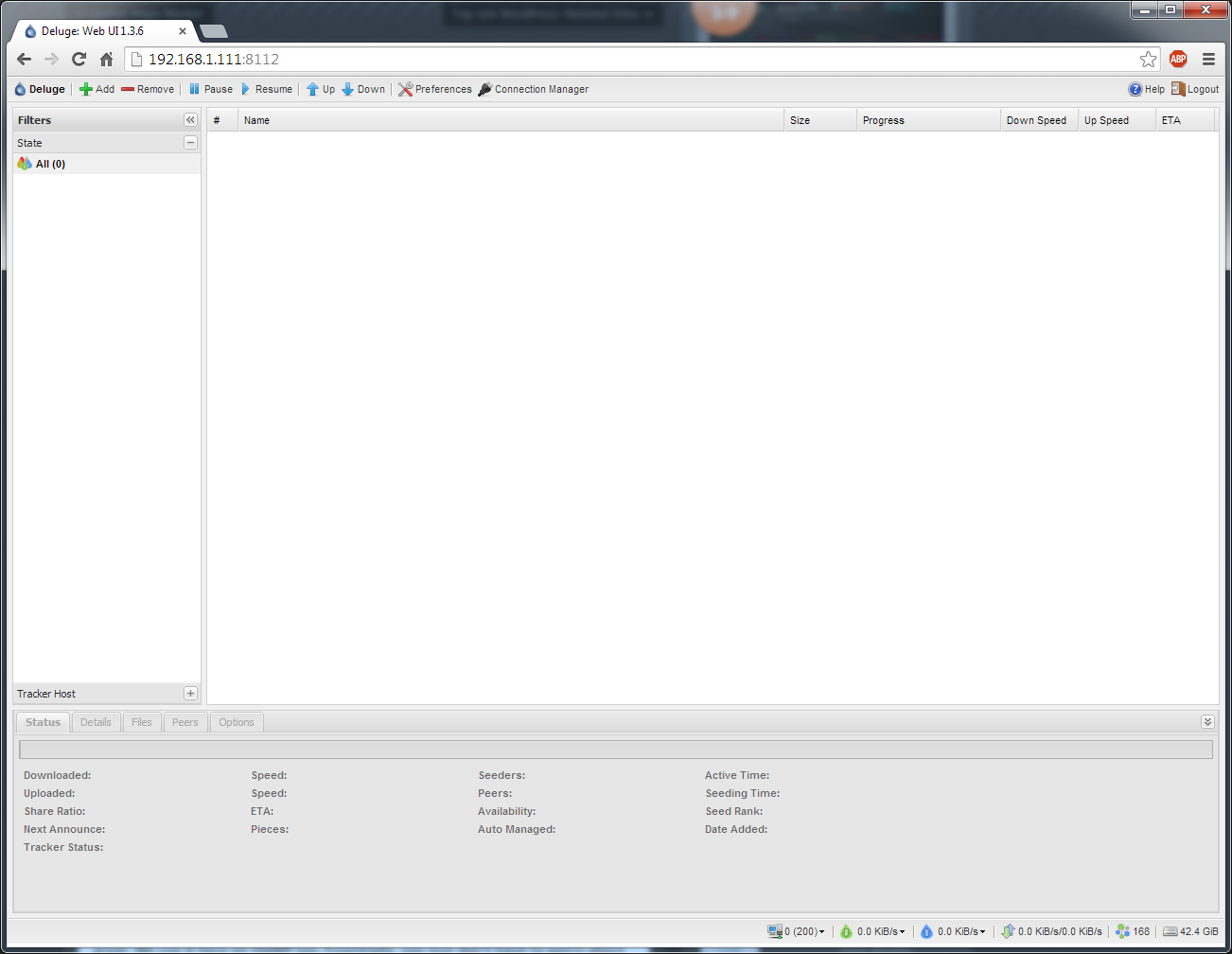
Now deluge will automatically start and run under seedbox user. Don’t forget to add rules to iptables for port 8112 which is the default port for the deluge webui.

deluge_webui